
Your quick-start guide
How to use your NFC card
One simple tap, a new connection. Follow the visual guide to find your phone’s tap spot and save someone’s contact details.
Free one-page guide. Save it to your phone or print a copy.
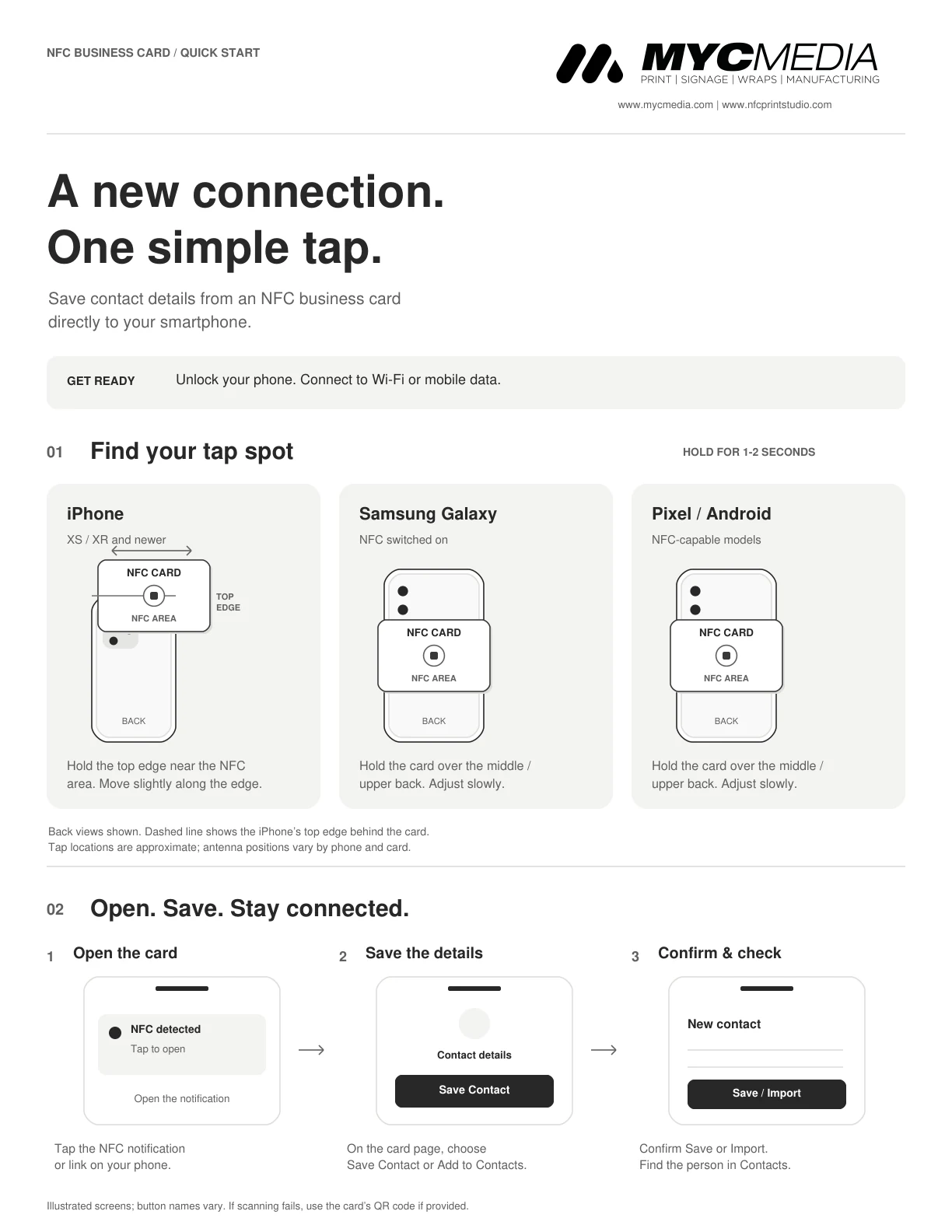
Before you tap
Unlock your phone and connect to Wi-Fi or mobile data. Hold the card near the tap spot for 1–2 seconds.
1. Find your tap spot
iPhone XS / XR and newer
Hold the top edge of the phone near the card’s NFC area. Move slightly along the edge.
Samsung Galaxy
Switch NFC on, then hold the card over the middle or upper back of the phone. Adjust slowly.
Pixel / Android
On an NFC-capable phone, hold the card over the middle or upper back. Adjust slowly to find the tap spot.
Tap locations are approximate. Antenna positions vary by phone and card.
2. Open, save and connect
Open the card
Tap the NFC notification or link that appears on your phone.
Save the details
On the card page, choose Save Contact or Add to Contacts.
Confirm and check
Confirm Save or Import, then find the person in your phone’s Contacts app.
Button names can vary. If scanning fails, use the card’s QR code if provided. Contact us for help.